
The screenshots show the app in French. In your language, the buttons are in the same place.
Say a word, make a sentence
Tap a picture, build “I want to play”, have it spoken, clear it.
- 6 steps
- 3 min

-
Tap a picture
The app says the word straight away and places it in the white bar at the top.
Tap “I”. -
Tap two more pictures
For example “want”, then “play”. The sentence builds up in the bar. Each colour is a family of words: it helps you find them again.
“I”, “want”, “play”. -
Tap Speak
The Speak button says the whole sentence. Each picture lights up as its word is spoken. Tapping the bar says the sentence again.
The Speak button. -
The delete arrow. -
Clear the whole sentence
The bin clears everything. Made a mistake? Straight afterwards, a curved arrow brings the sentence back, as long as no other word has been tapped.
The bin. -
Open a folder
A picture shaped like a file folder, with a tab, is a folder: Meals, Play, Body… Tap it to see more pictures. Home takes you back to the first page.
A folder has a tab at the top.
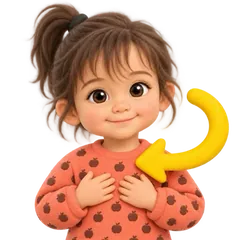 I
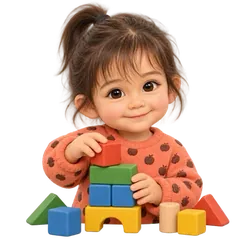 play
 yes
 no
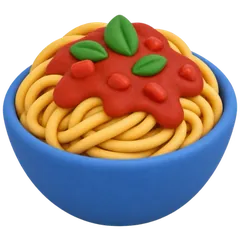 Meals
Not working?
Nothing happens when I tap a picture.
If the “Touch and hold” setting is on, you need to keep your finger down for half a second, until the ring is full.
My child isn’t interested.
That is common at first. Use it yourself in front of them, without asking anything of them: “we’re going to eat”, tapping the pictures as you speak. They learn by watching you.