
The screenshots show the app in French. In your language, the buttons are in the same place.
Fit the grid to your child
Larger cells, a black background for low vision, touch and hold, first words.
- 6 steps
- 3 min
-
Open the adult area
On your child’s screen, tap the small grey cog at the top right. Enter your adult passcode.The cog, at the top right. -
In the adult area. -
Cell size
Regular, Large, Extra large or Largest. Larger cells mean fewer words per page: arrows lead to the rest.
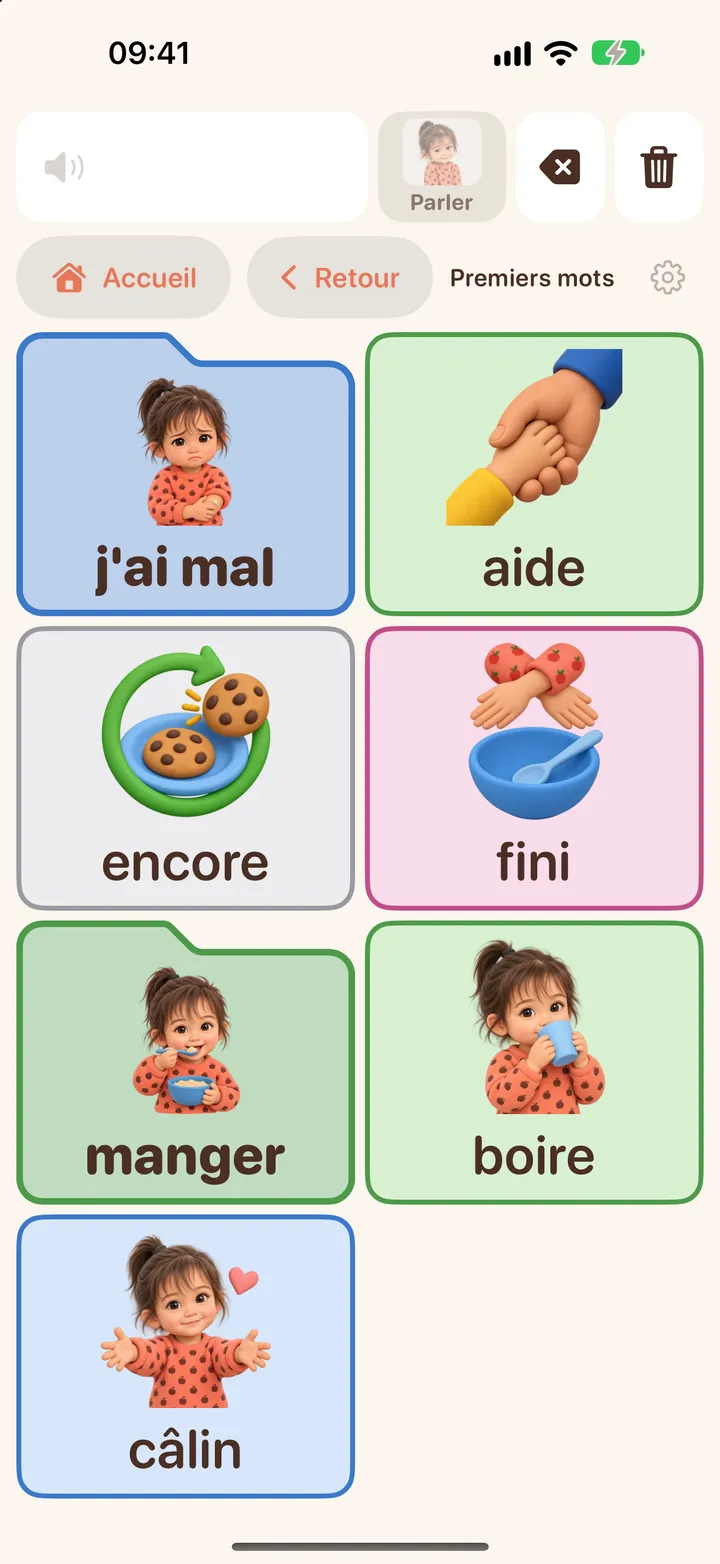
Large cells that are easy to aim for. -
Low vision
Low vision (black background): black background, thick outlines, white text.
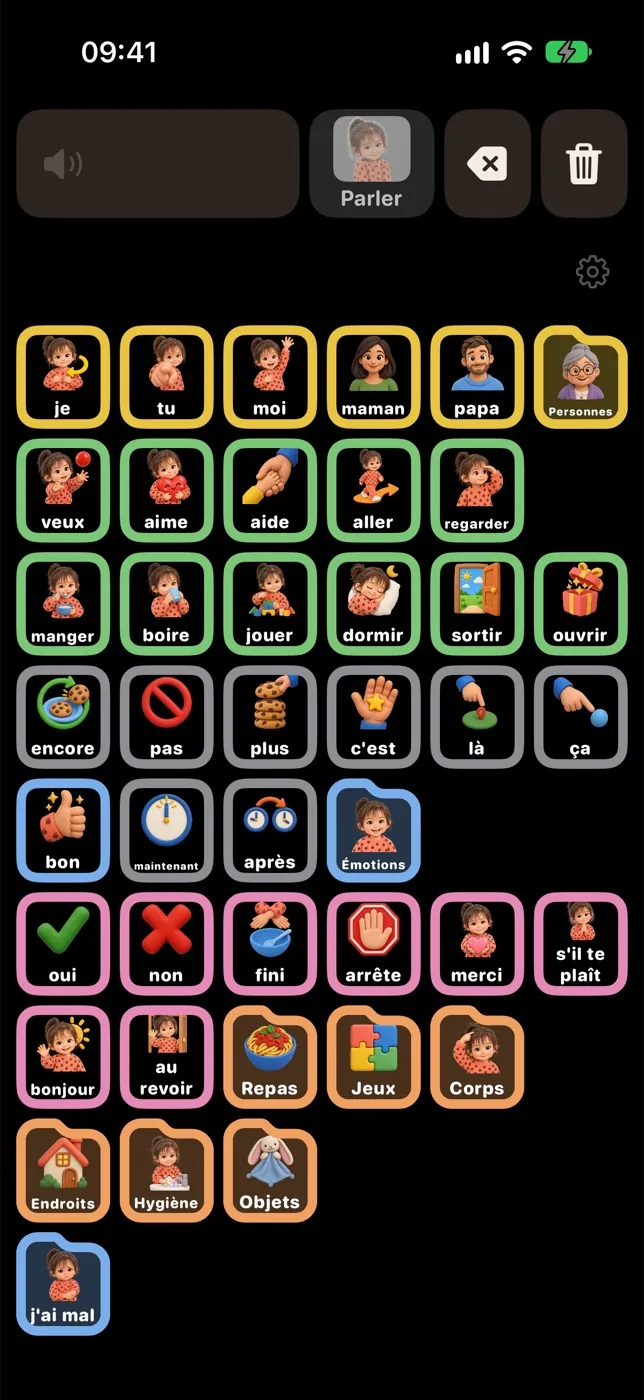
The grid in “Low vision”. -
Touch and hold
Touch and hold to speak a word: your child keeps a finger on the picture for half a second while a ring fills up. Useful if they brush against the screen, have a tremor or tap without meaning to.
The ring fills up. -
First words
Start screen › First words (8 large cells): your child stays on eight cells. Choose All words when they are ready for more.
The “First words” screen.
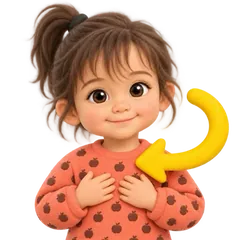 I
 want
 play
 yes
 no
 Meals
Not working?
My child is stuck on eight cells.
The start screen is set to “First words”. Choose “All words”.
My child says words without meaning to.
Turn on “Touch and hold to speak a word”.